Got a .msg file, a winmail.dat attachment, or a .eml you can’t open? No Microsoft Outlook required. This tutorial shows you how to read, extract attachments from, and export individual Microsoft email files on macOS and iOS — using MailRaider.
This tutorial covers opening individual email files: .msg, .eml, .oft, and winmail.dat. These formats are supported by all three versions — MailRaider Pro for Mac, MailRaider for Mac, and MailRaider for iOS. If you need to open PST archives, OLK databases, MBOX files, or process entire folders of email in bulk, those are exclusive to MailRaider Pro — see the MailRaider Pro archive tutorial.
MailRaider Pro installs system extensions that let macOS work with your email files directly from the Finder, without opening the app. These features are exclusive to MailRaider Pro and are not available in the standard MailRaider for Mac.
Search inside .msg files with Spotlight. MailRaider installs a Spotlight importer that lets macOS index the contents of your email files — subject lines, sender names, body text, and more. Press ⌘ Space, start typing any word from an email you received as a .msg file, and Spotlight will find it, even if you have never opened it.
Preview any email with Quick Look. Select any .msg, winmail.dat, or .eml file in Finder and press Space. A Quick Look preview opens immediately, showing the full formatted email — headers, body, and embedded images — without launching MailRaider at all. Quick Look is useful when you want to confirm you have the right file before doing anything further with it.
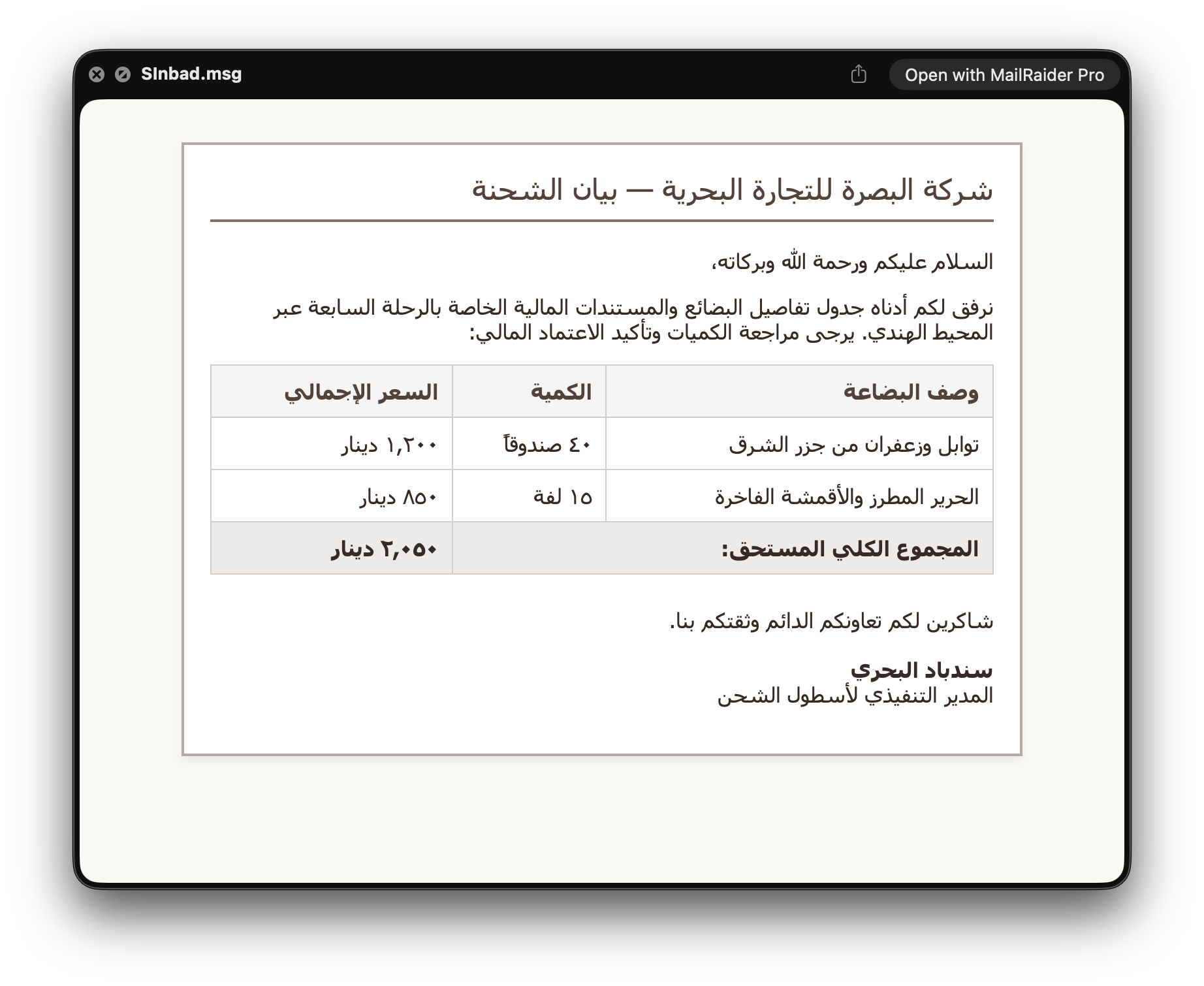
Double-click any supported file in Finder. MailRaider opens automatically and displays the email with full formatting — fonts, colours, embedded images, and all headers — exactly as the original sender composed it. Email headers are colour-coded so you can read sender, recipient, date, and subject at a glance.
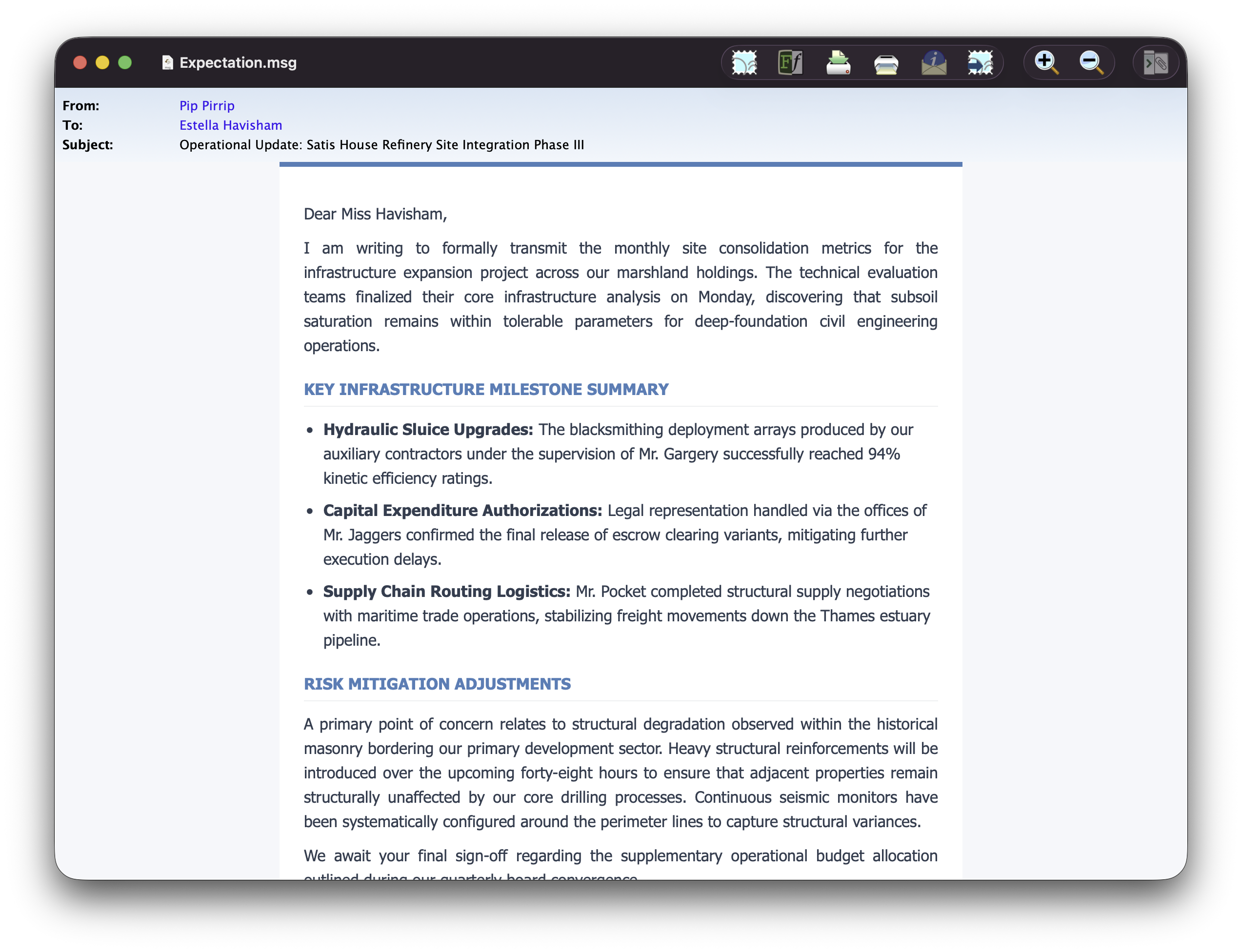
Opening in its native application. The toolbar shows the icon of the application that natively handles the currently opened document on your Mac. Click the icon and the file opens directly in that app — an email opens in Apple Mail, an appointment document opens in Calendar, and so on. There is no need to export the email first (but if you want to then you can).
Attachments live in a slide-out drawer. To open it, double-click any attachment listed in the email. The drawer slides in and shows all attachments as a list with file names, types, and sizes.
You have two ways to save attachments. You can drag any attachment directly out of the drawer and drop it onto your Desktop, into a Finder window, or into any folder. Or you can select one or more attachments in the drawer — hold ⌘ to select multiple — and click Save to choose a destination folder.
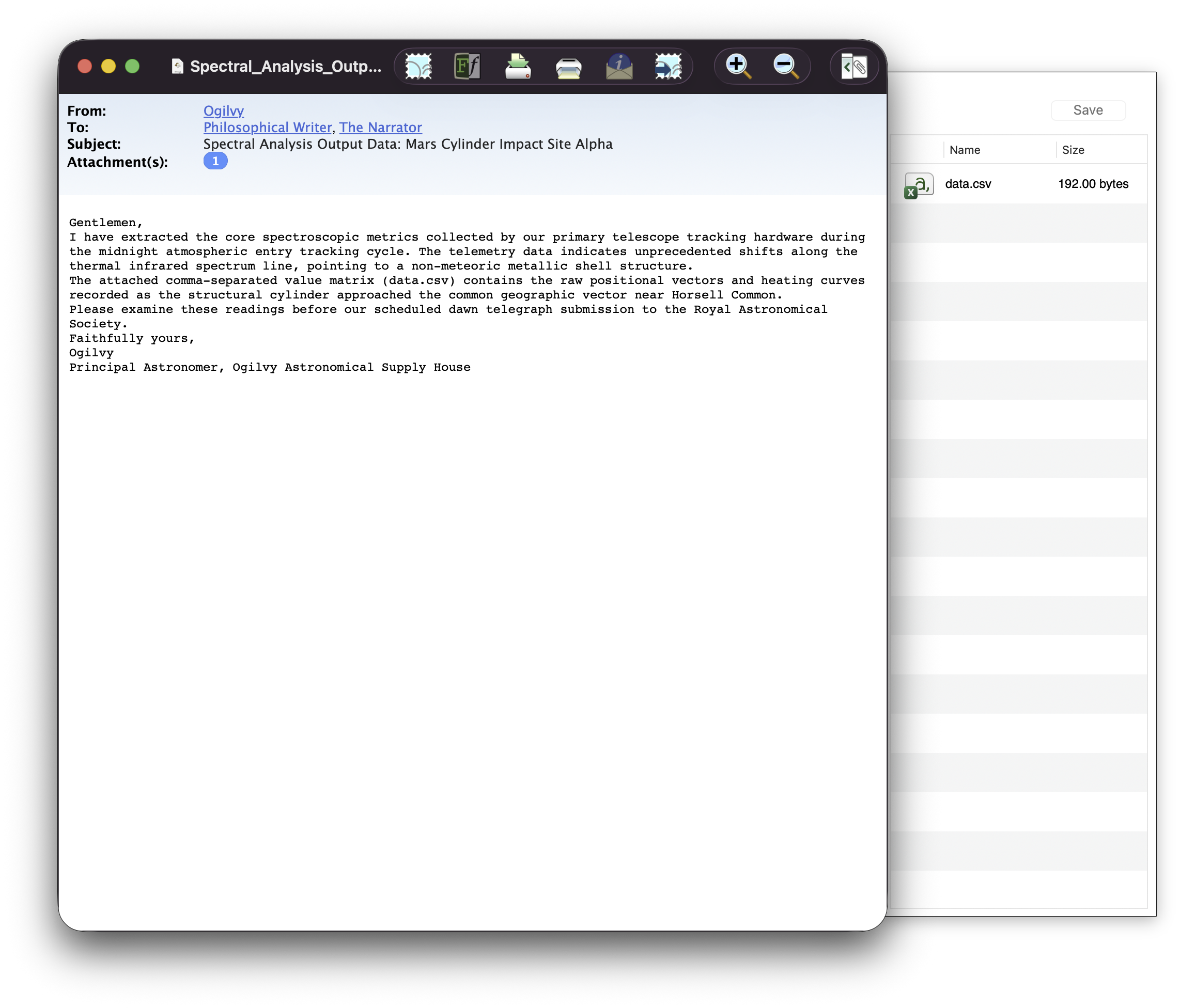
A note on winmail.dat: This file isn’t actually an attachment — it’s a TNEF (Transport Neutral Encapsulation Format) container that Microsoft Outlook for Windows uses to wrap the real attachments and formatting. MailRaider unpacks it automatically, so you see the actual files inside rather than the container itself.
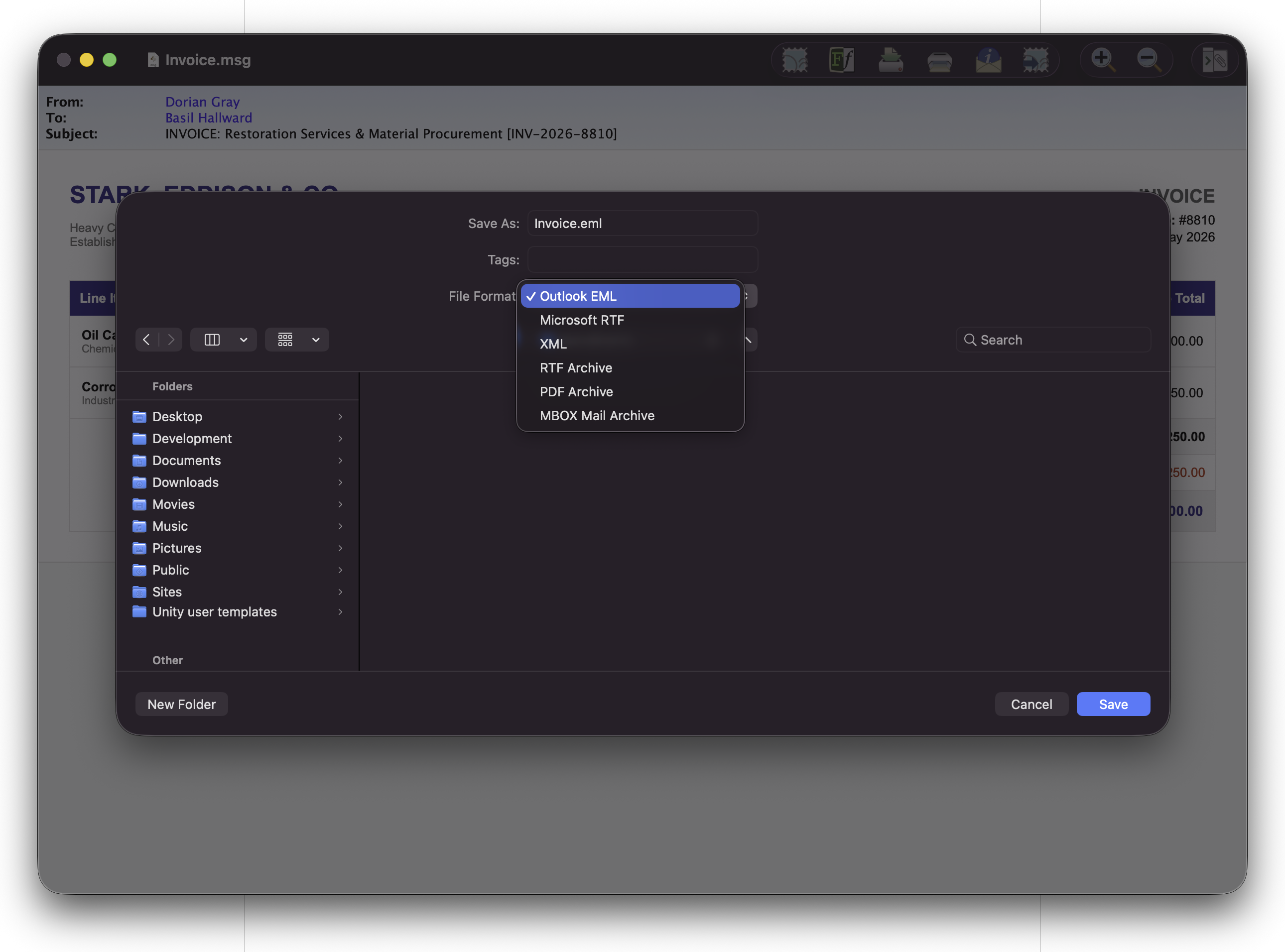
Use File > Export to save the email in a format that works outside MailRaider. MailRaider for Mac and iOS export to EML, PDF, RTF, vCard, and Calendar. MBOX and XML export are exclusive to MailRaider Pro.
| Format | Use it for | MailRaider (Mac) | MailRaider Pro | MailRaider (iOS) |
|---|---|---|---|---|
| Archiving or sharing the email as a document | ✓ | ✓ | ✓ | |
| RTF | Editable rich text, opens in any word processor | ✓ | ✓ | |
| EML | Standard email format, importable into most mail apps | ✓ | ✓ | |
| vCard (.vcf) | Export contacts to Apple Contacts or any address book | ✓ | ✓ | ✓ |
| Calendar (.ics) | Export appointments to Apple Calendar | ✓ | ✓ | ✓ |
| MBOX | Export for migration to Apple Mail or Thunderbird — MailRaider Pro only | ✓ | ||
| XML (customisable) | Export for your own tools and pipelines | ✓ |
MailRaider for iOS works with any app that can share files — Mail, iCloud Drive, Dropbox, Google Drive, OneDrive, and more. When a .msg file, winmail.dat, or .eml arrives in your inbox or appears in your Files app, tap it. iOS recognises that MailRaider handles that file type and opens it directly, with the full formatted email on screen.
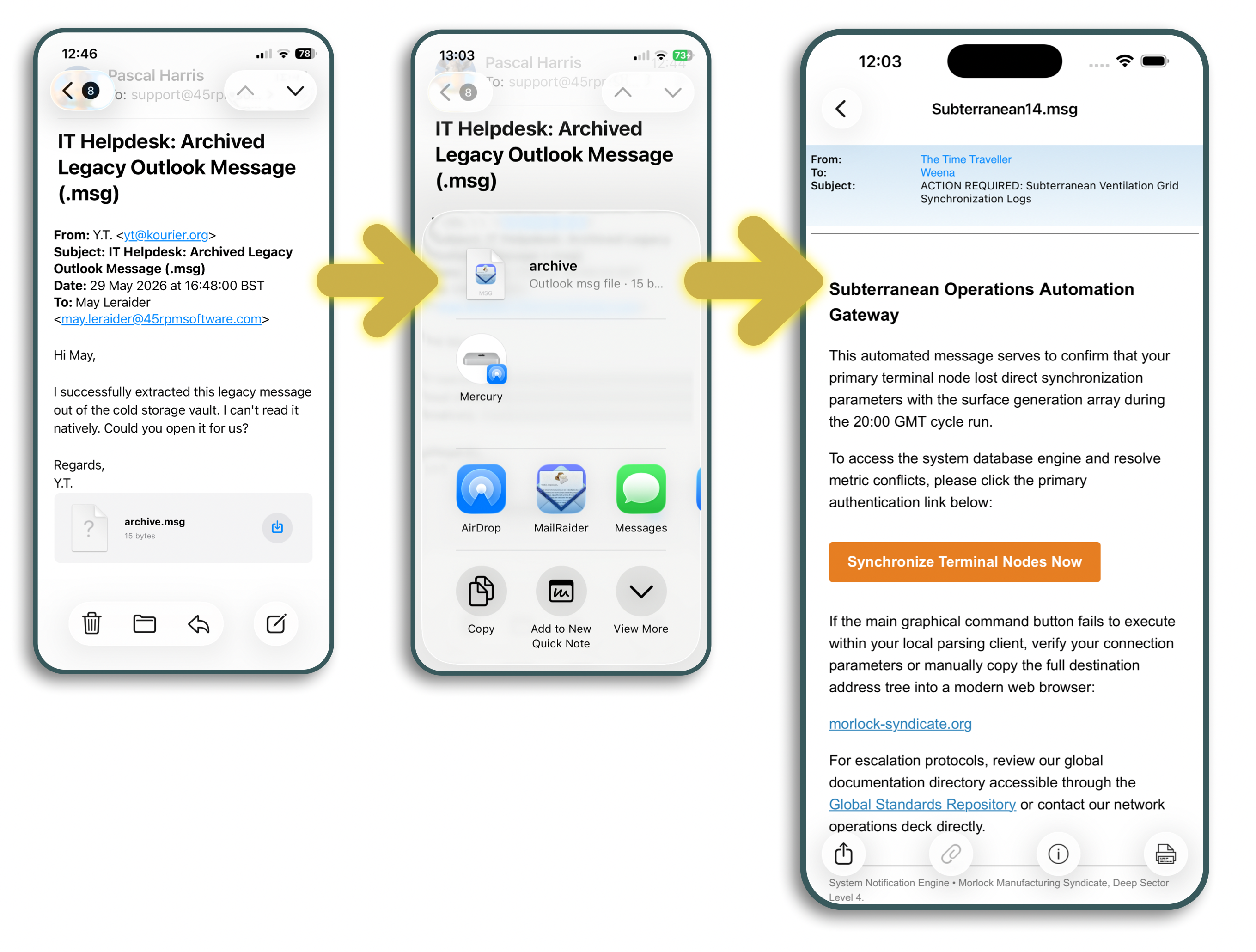
On iPad, MailRaider supports Split View and Slide Over, so you can work with an email alongside another app. It is a proper iPad app — not a scaled-up iPhone layout.
Each email you open in MailRaider for iOS is added to a list of recently opened emails. The next time you launch the app, that list is waiting for you, so you can return to emails you have already reviewed without hunting for the original file again.
Removing an email from the list. Swipe left on any email in the list and tap Delete. The email is removed from MailRaider’s history; the original file — in Mail, iCloud Drive, or wherever it came from — is not affected.
First time opening MailRaider for iOS? MailRaider is a viewer, not a creator — if you have not opened any email files yet, the list will be empty. To make sure you are not left with a blank screen, MailRaider automatically opens its help file the first time you launch it.
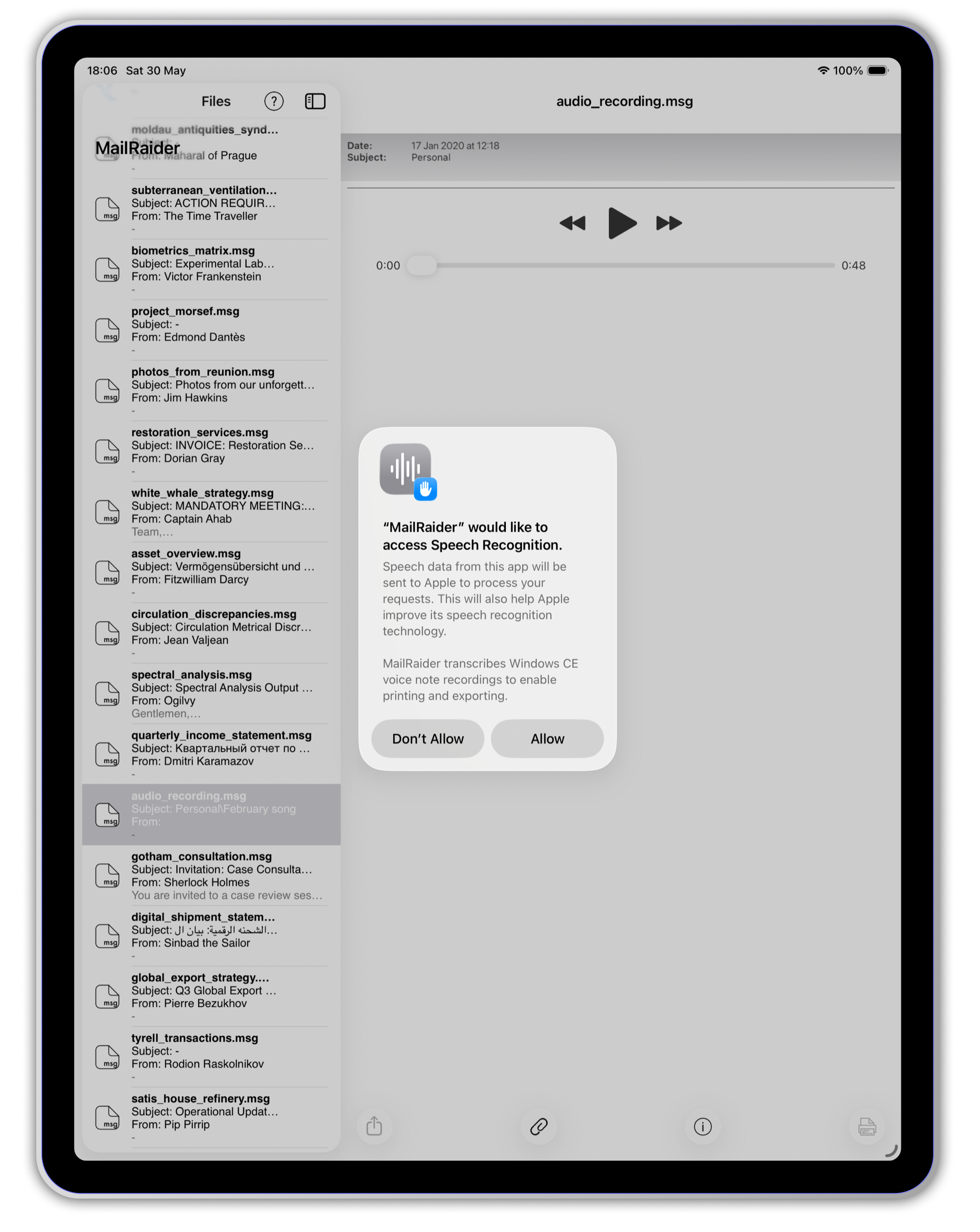
MailRaider — every version, including the standard Mac and iOS editions — can open Windows CE audio messages embedded in Outlook emails and transcribe them using Apple’s Speech Recognition framework.
Open an email containing a voice note, then click or tap Transcribe. MailRaider produces a readable transcript that you can read on screen, print, or export alongside the original audio.
Each version of MailRaider ships with complete built-in help documentation, covering every feature in detail. On Mac, access it from the Help menu. On iOS, tap the help icon in MailRaider. The help file opens automatically the first time you launch MailRaider for iOS, so you always have somewhere to start.
Additional documentation, sample AppleScript scripts, and a full Shortcuts action reference are available on the MailRaider Pro Automation page.
Downloads
MailRaider Pro Adds Spotlight and Quick Look integration, PST and OLK archive support, bulk processing, MBOX export, and automation.
Mac MailRaider Opens .msg, .eml, .oft, and winmail.dat files. Export to EML, PDF, and RTF.
iOS MailRaider Opens .msg, .eml, and winmail.dat on iPhone and iPad.
MailRaider Pro is also available as a direct download from this site — see the MailRaider Pro archive tutorial for download links.