MailRaider Pro opens Outlook archives that no other Mac app can touch. Whether you have a PST file from a Windows PC, an OLK database from an older version of Outlook for Mac, an MBOX archive, or simply a folder full of .msg files, MailRaider Pro handles all of them the same way: open the archive, navigate its folder structure, search and sort the contents, open individual emails to read them, and export everything — in bulk, with the folder hierarchy intact.
This tutorial covers the full workflow for MailRaider Pro. For opening individual .msg, .eml, and winmail.dat files, see the MailRaider single-file tutorial.
MailRaider Pro can open any of the following in a single step:
| Format | What it is | How to open |
|---|---|---|
PST archive (.pst) |
The standard Outlook for Windows mailbox file — may contain years of email, contacts, and calendar items across many folders | Double-click in Finder, or drag onto the MailRaider Pro icon |
| OLK database | The archive format used by older versions of Outlook for Mac | Double-click in Finder, or use File > Open |
MBOX archive (.mbox) |
A standard mailbox format used by Apple Mail, Thunderbird, and many others | Double-click in Finder, or drag onto the MailRaider Pro icon |
| Folder of email files | A folder containing any mix of .msg, .eml, or .oft files |
Drag the folder onto the MailRaider Pro icon, or use File > Open Folder |
To open any of these, double-click the file or folder in Finder, or drag it onto the MailRaider Pro icon in your Dock or Applications folder. You can also use File > Open from within the app.
When MailRaider Pro opens an archive, it displays a two-panel view. The left panel shows the full folder hierarchy of the archive — Inbox, Sent Items, Deleted Items, and any nested folders or subfolders exactly as they were organised in Outlook. The right panel shows the list of emails in whichever folder is currently selected.
Click any folder in the left panel to load its contents in the email list on the right. To navigate into a subfolder, double-click it — or click the magnifying glass icon next to its name. The folder list updates to show the contents of that subfolder. To return to the parent folder, double-click the .. entry at the top of the folder list. PST archives in particular can contain deeply nested folder structures built up over many years — MailRaider Pro preserves and displays all of them.
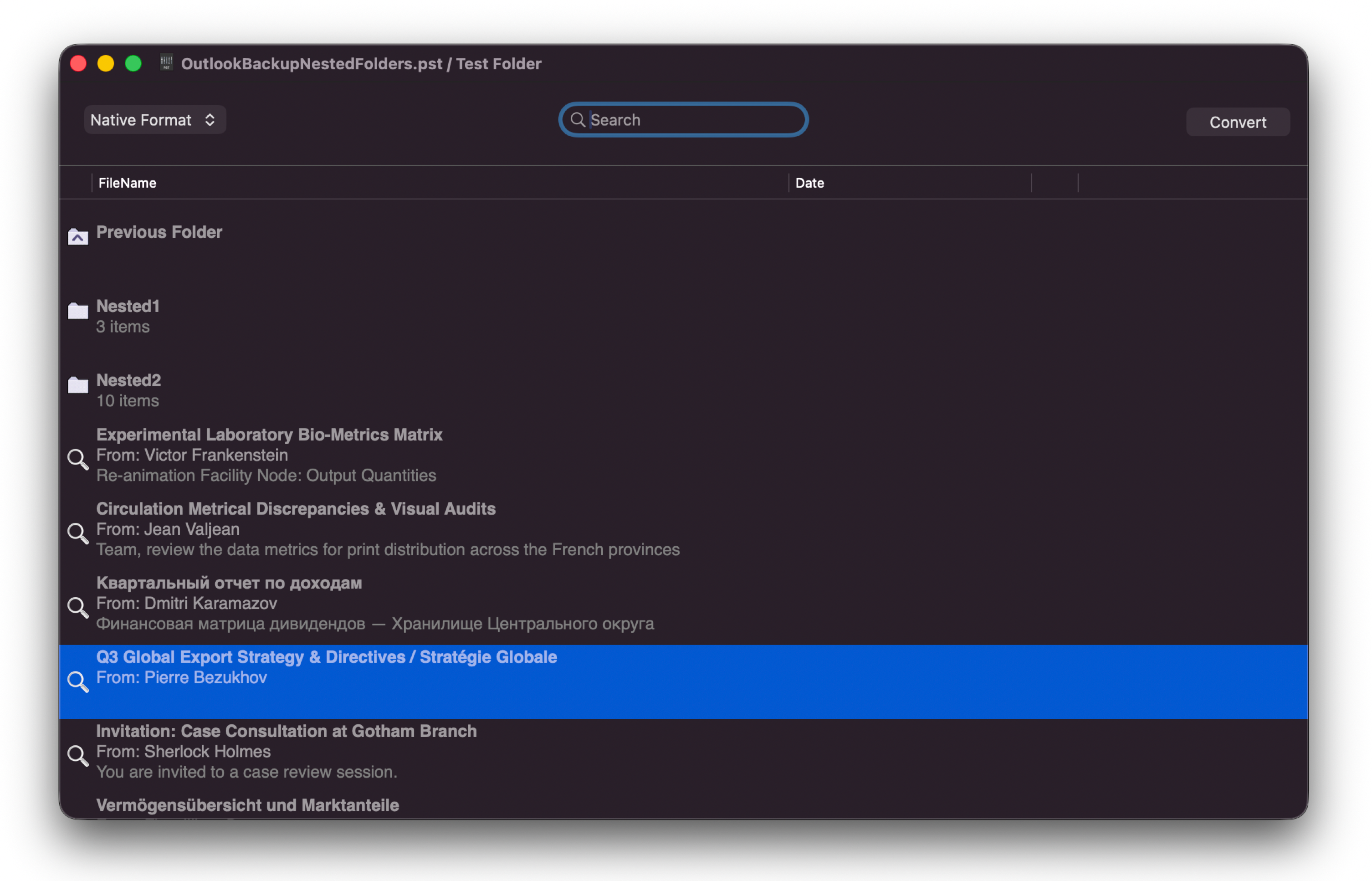
Sorting the email list. Click any column header in the email list to sort by that field. Click From to sort by sender, Subject to sort alphabetically by subject, or Date to sort chronologically. Click the same header again to reverse the sort order. This applies to whichever folder is currently selected in the left panel.
Searching across the entire archive. Use the search field at the top of the window to run a full-text search across the archive — across all folders at once. MailRaider Pro searches subject lines, sender and recipient fields, and body text. Results appear in the email list as you type.
To open any email from the list, either double-click its row, or click the magnifying glass icon next to its name. The email opens in a standard MailRaider reading window — the same view you get when opening a file directly from the Finder.
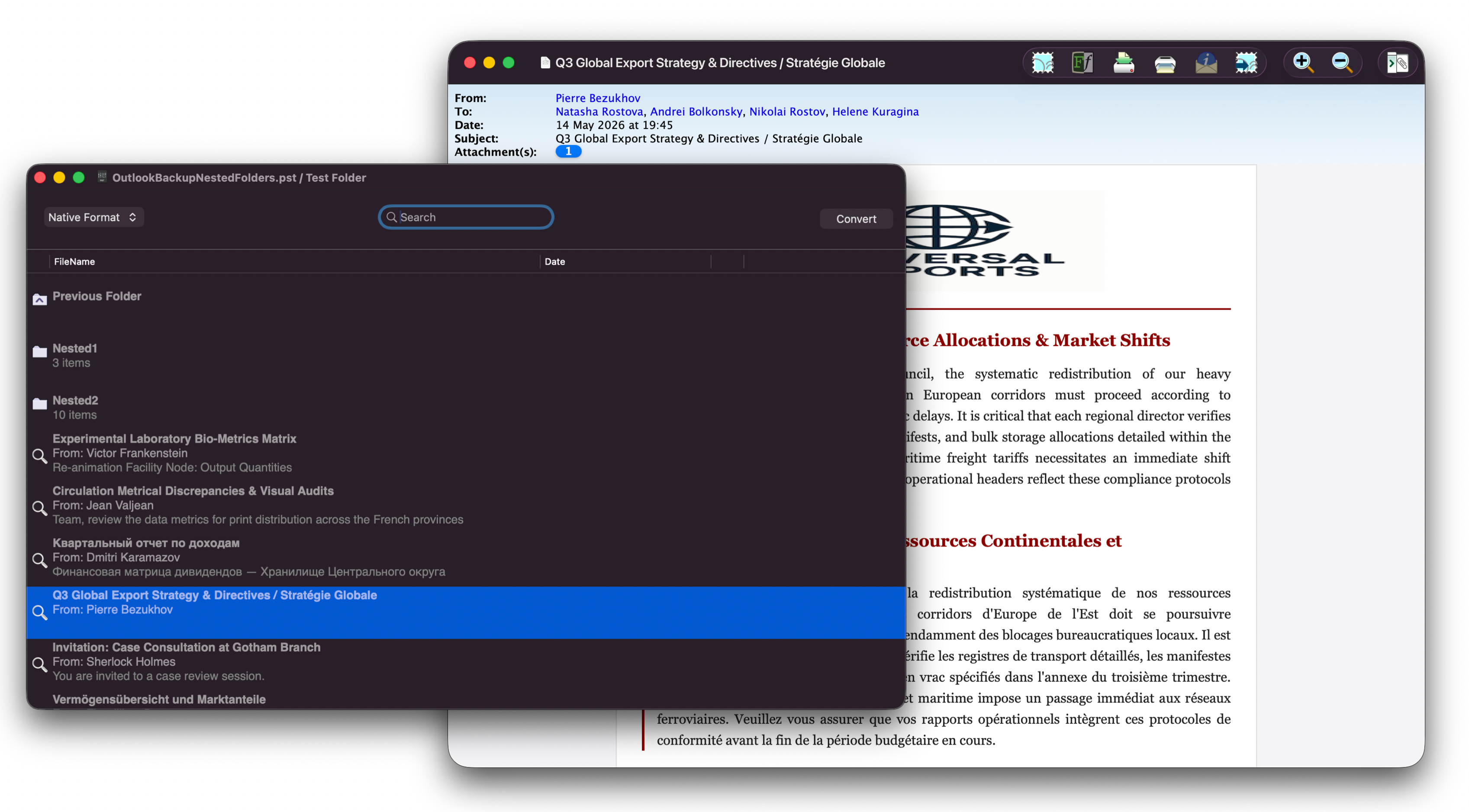
Once open, every email can be processed exactly as described in the single-file tutorial: read the formatted content, open or save attachments using the slide-out drawer, open attachments directly in their native Mac app, and export to PDF, RTF, EML, vCard, or Calendar format. Voice note transcription is also available for any email containing a Windows voice note.
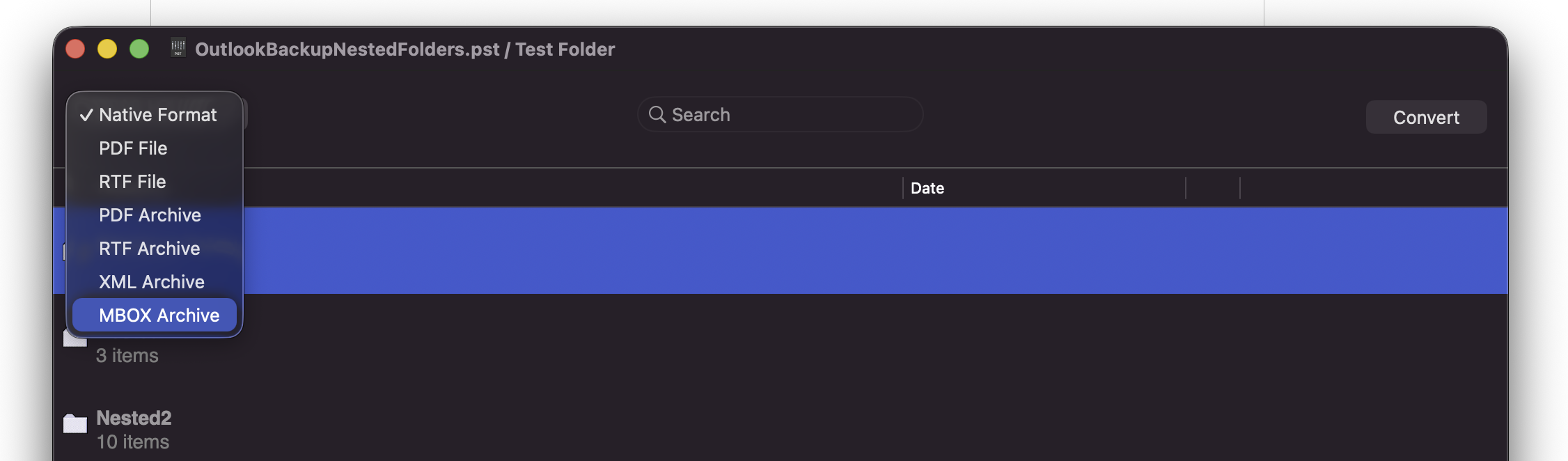
MBOX export is the key step for migrating your Outlook email to Apple Mail, Thunderbird, or any other standards-compliant email application. MailRaider Pro exports the entire archive — or any selection of folders within it — to MBOX format, with the original folder hierarchy preserved as nested MBOX archives.
To export to MBOX: Select the folder or folders you want to export in the left panel, then choose File > Export > MBOX. A save panel appears. Choose a destination and click Save. MailRaider Pro creates an MBOX file for each folder, with sub-folders exported as nested archives inside a containing folder of the same name.
Once your MBOX export is complete, import it into Apple Mail using File > Import Mailboxes. Select Files in mbox format, navigate to the folder containing your exported MBOX files, and click Continue. Apple Mail imports the email and rebuilds the folder structure.
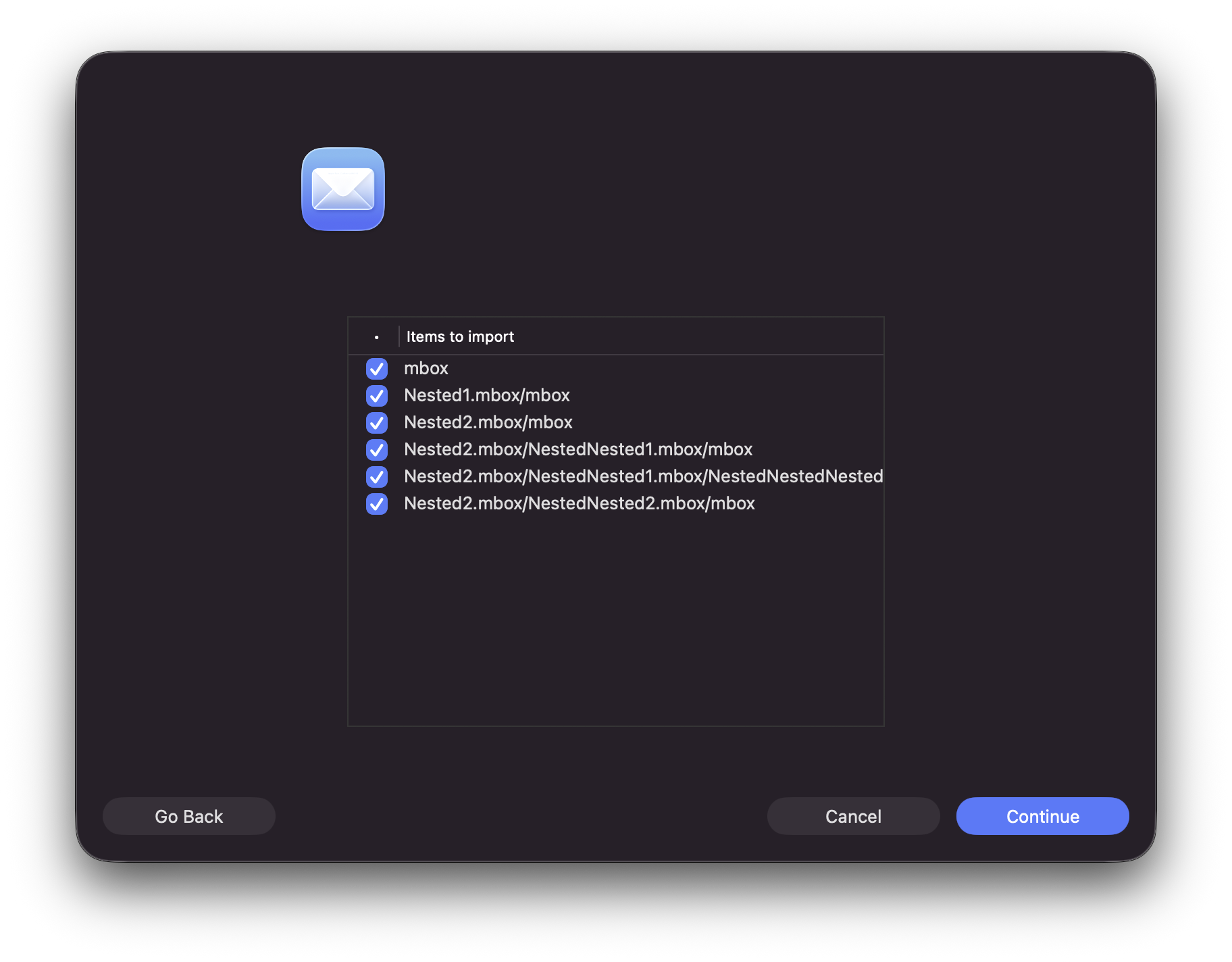
After import, your email appears in Apple Mail under an Import section in the sidebar. The folder names from your original Outlook archive are preserved. There is one nuance worth being aware of: Apple Mail places the imported messages inside an MBOX subfolder within each correctly named folder, rather than directly inside the folder itself. This is a characteristic of the way Apple Mail handles bulk MBOX imports — the emails are all present and correctly categorised, but you will find them one level deeper than you might expect. The folder names themselves are correct.
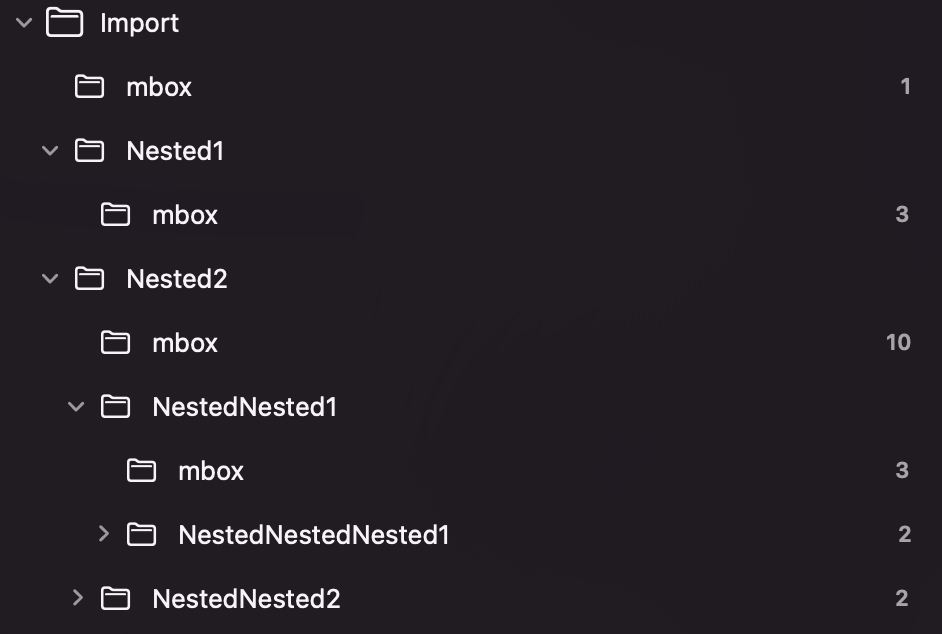
Thunderbird and other MBOX-compatible clients handle the import without this additional nesting. If you are using Thunderbird, simply use Tools > Import and select your MBOX files.
MBOX is the primary format for migration, but MailRaider Pro can also export selected email in bulk to other formats via File > Export:
| Format | Use it for |
|---|---|
| Archiving a set of emails as documents — useful for legal or compliance purposes | |
| EML | Standard email format, compatible with most email clients |
| RTF | Editable rich text — useful when the email content needs to be edited or incorporated into a document |
| XML (customisable) | Structured export for your own tools, scripts, or data pipelines — the XML schema can be customised to match your requirements |
| vCard (.vcf) | Bulk contact export to Apple Contacts or any address book |
| Calendar (.ics) | Bulk calendar appointment export to Apple Calendar |
MailRaider Pro supports AppleScript and macOS Shortcuts, allowing you to automate repetitive bulk processing tasks — for example, opening a folder of .msg files, applying a filter, and exporting the results to a specific format and location, all without manual interaction. Full documentation and sample scripts are available on the MailRaider Pro Automation page.
Downloads
Version 5 The current version of MailRaider Pro, available directly. Can also be used as a demo. Coming Soon
Version 4 Use this version if you have an existing version 4 licence key.
Mac App Store The current App Store version of MailRaider Pro for Mac.
To buy the non-App Store version of MailRaider Pro directly, you can do so in the app — or via the secure payment store.